
Guide 02 · 6 min · DroneXR Android
Choose and set up your headset
Pick a phone-in VR headset that works with DroneXR, then calibrate it once so the image is sharp and comfortable.
DroneXR works with the simple kind of VR headset you slide your phone into. It needs no electronics, because the phone does all the work. Every headset’s lenses bend the image a little differently, so you calibrate DroneXR once per headset, and it remembers a separate profile for each one you own.
What to look for in a headset
- Your phone fits. Check the headset’s maximum phone size. The screen should sit centred behind the lenses.
- There’s room for the cable. Your phone stays plugged into the remote controller while you fly, so the headset must leave the phone’s USB port reachable.
- The lenses are adjustable. If you can move the lenses to match the distance between your eyes, the image will be sharper and more comfortable.
- It has a head strap. Both your hands belong on the sticks, so a strap needs to hold the headset in place.
Open the headset settings
- In DroneXR, open Settings (the gear on the main screen) and choose Headset.
- Pick your headset from the list, or tap Add headset to create a new profile.
- Give it a name you’ll recognise. That helps once you own more than one.
Calibrate one setting at a time
Each setting has its own tab with a live test pattern. Put the phone in the headset, look through the lenses, and adjust until the pattern looks right. Then take the phone out and move on to the next tab.
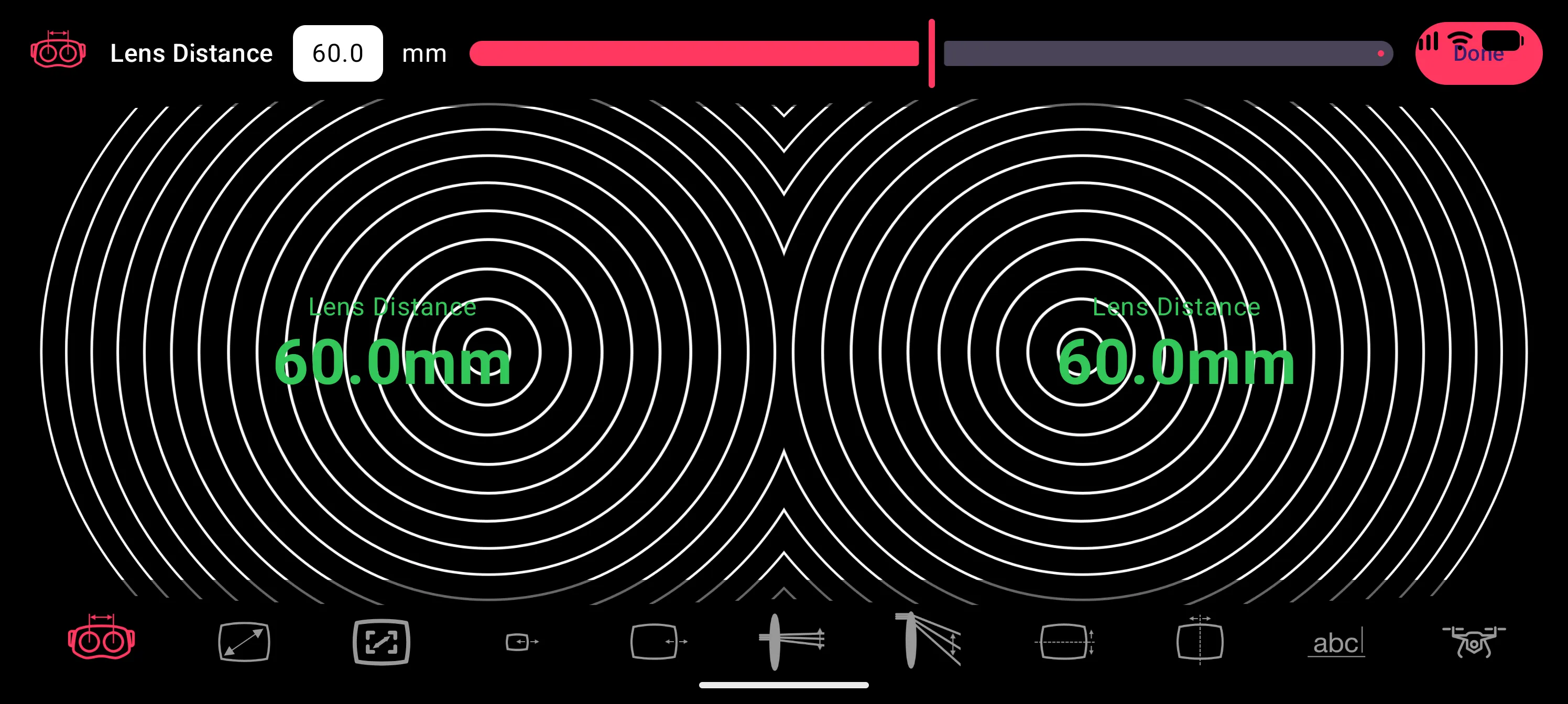
- Lens Distance: the distance between the centres of your headset’s two lenses. Start here, because every other setting depends on it.
- Scale: how large the video appears. Make it fill your view without the edges disappearing.
- HUD Scale: the size of the head-up display, set separately from the video.
- Inner / Outer distortion: counteracts the lenses’ barrel effect. Straighten the rings of the test pattern near the centre first, then towards the edge.
- Inner / Outer chromatic aberration: removes the coloured fringes that lenses add towards the edges.
- Vertical / Horizontal Offset: moves the image up, down or sideways to match where the lenses sit, if your phone ends up off-centre.
Finish with Test Headset to check the result, then tap Done.
One profile per headset
If you own more than one headset, save a named profile for each, and pick the right one in Settings → Headset before you fly. Each profile keeps all of its own calibration values.